





Contact us
My card

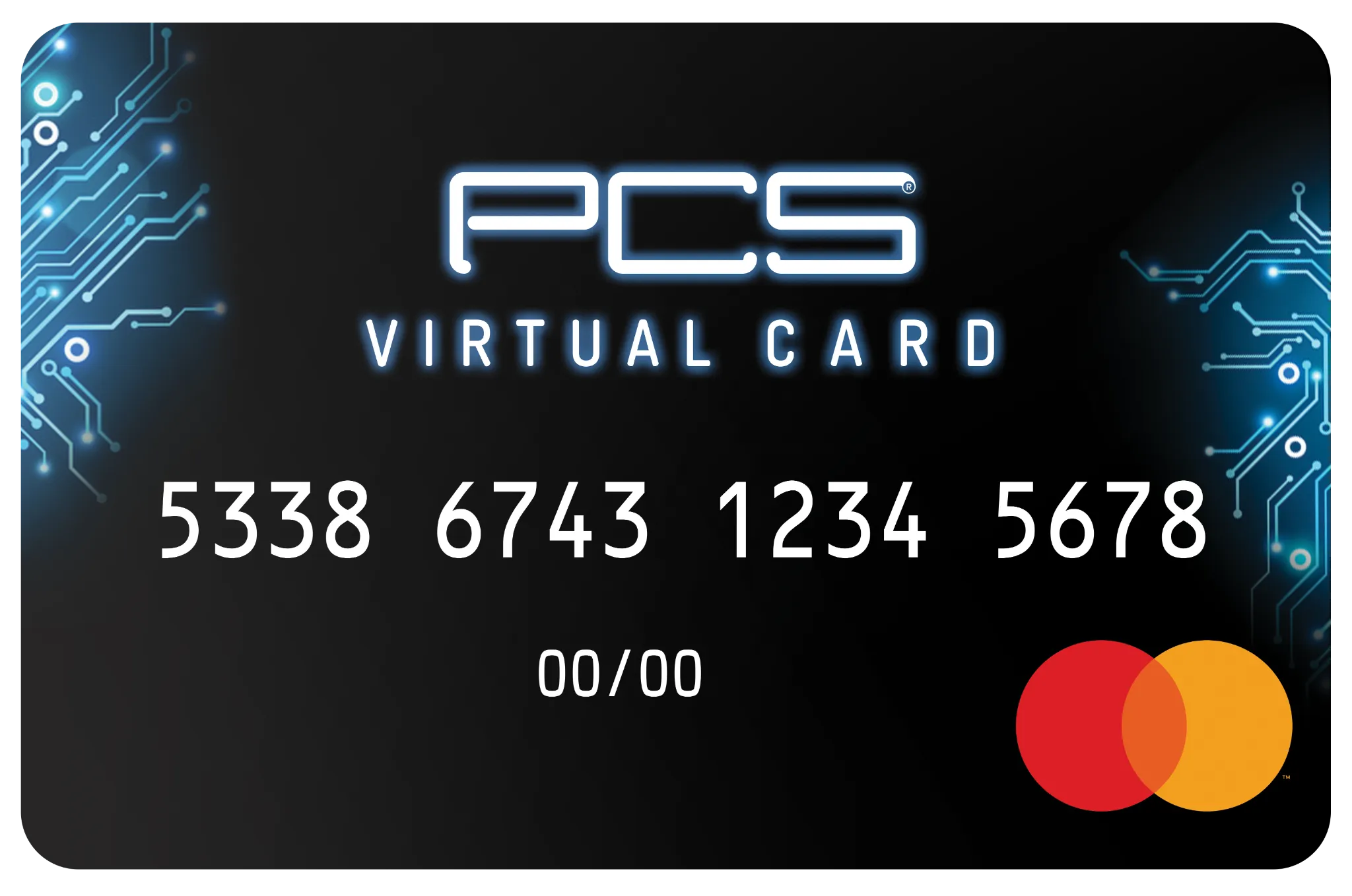
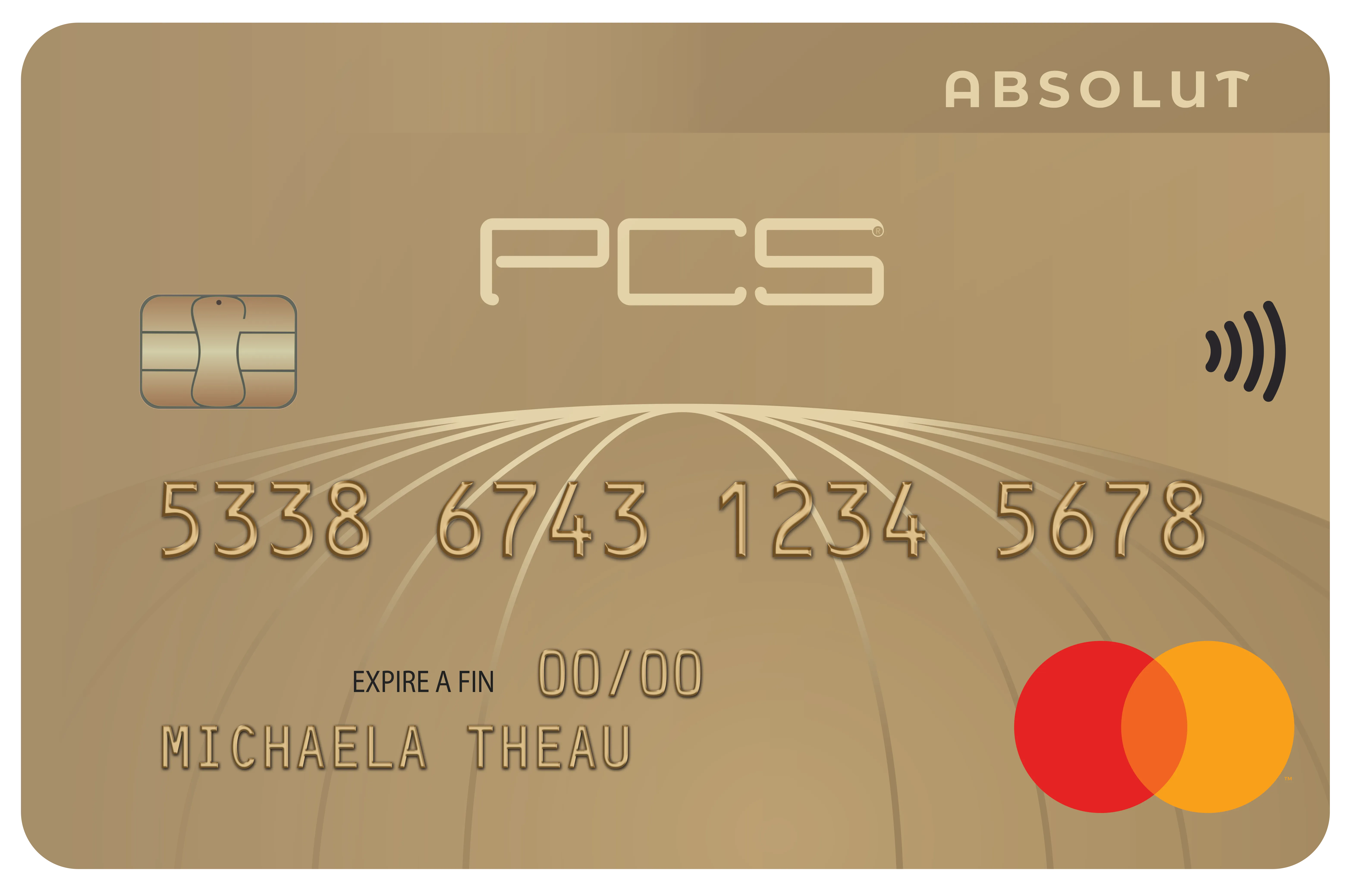
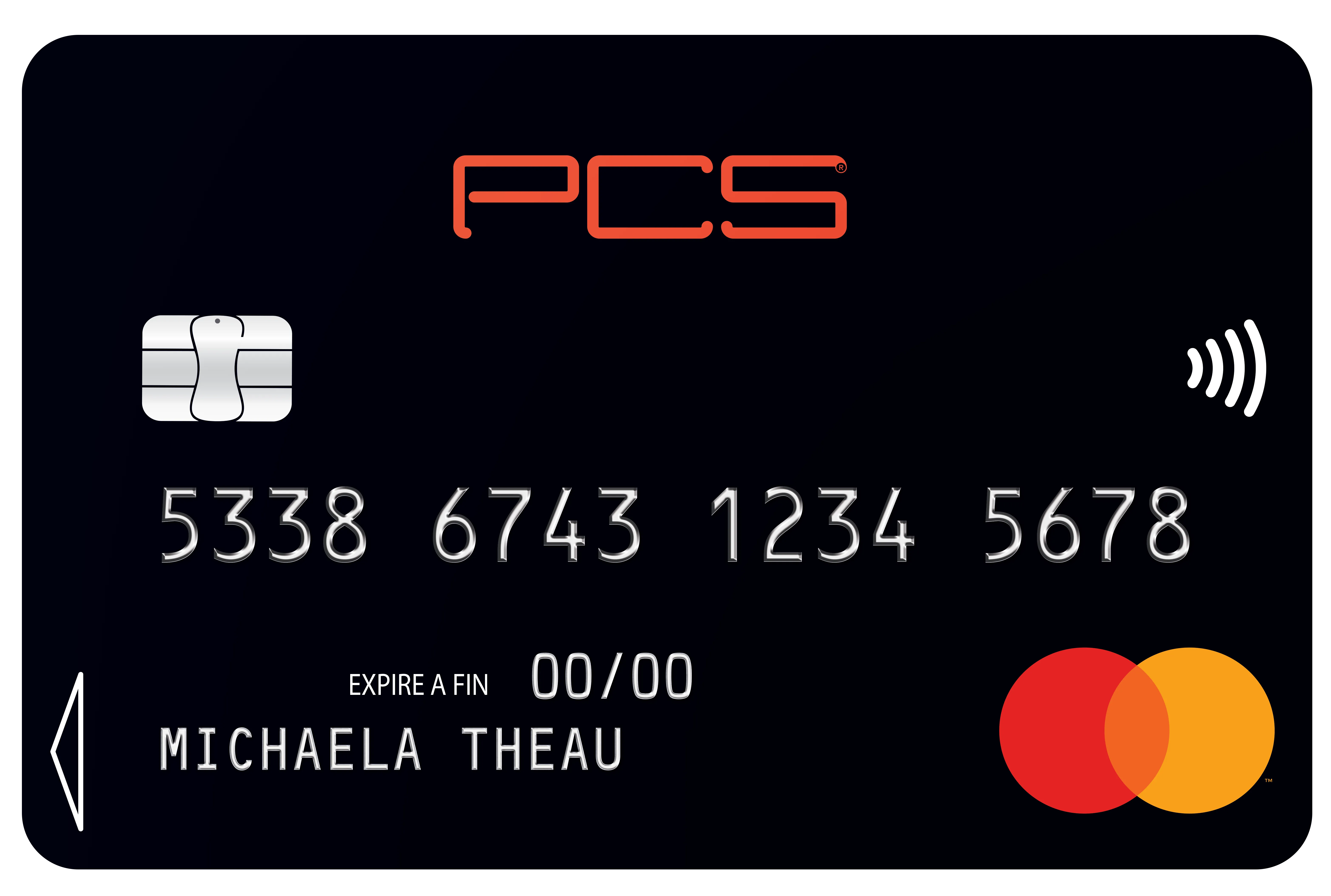
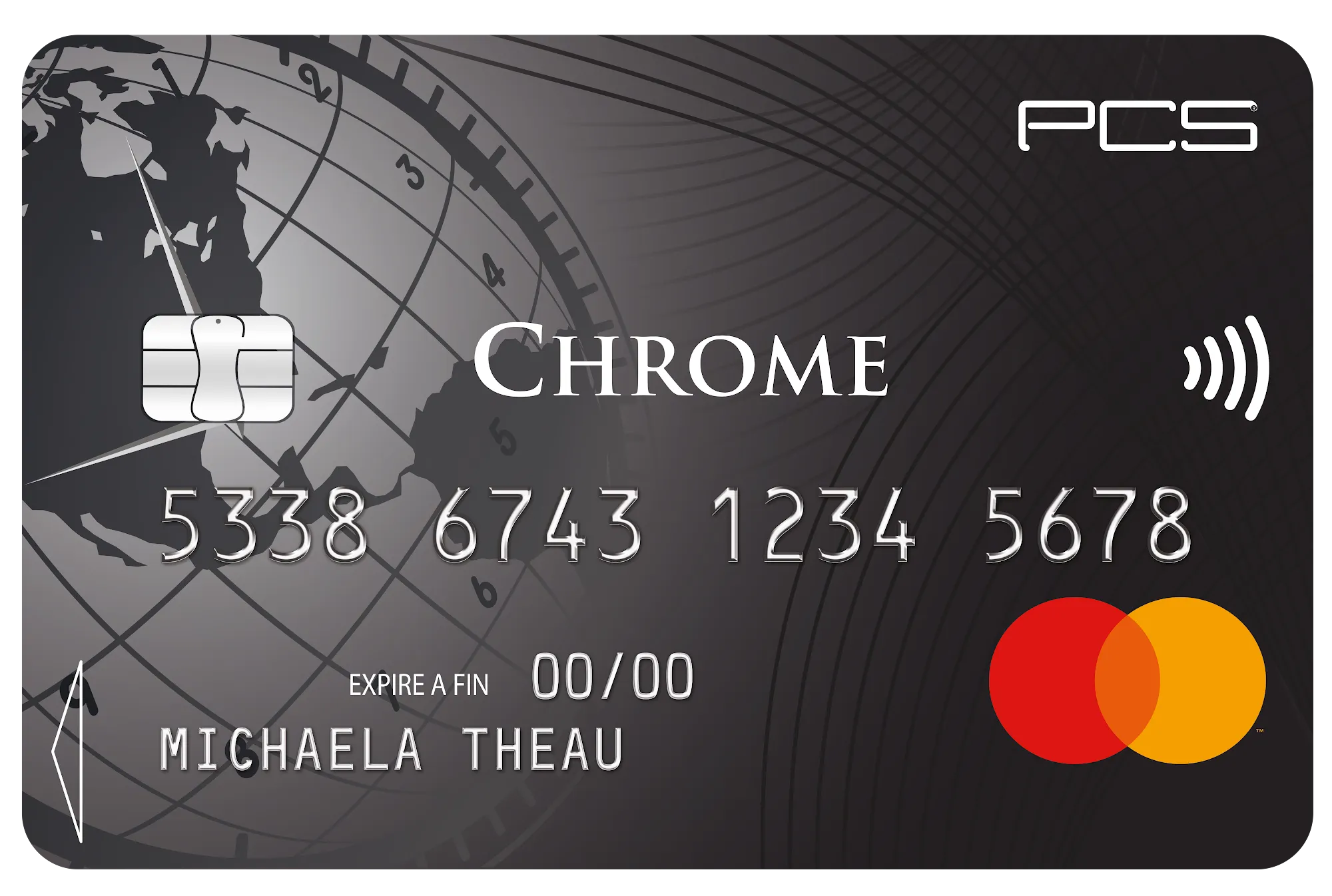
Which card do you have?
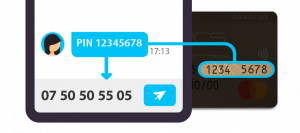
To activate your card and get your PIN code, send the following text message:
the letters PIN followed by a space, then the last 8 digits of your PCS card to 07 57 57 55 55
Example: PIN 12345678
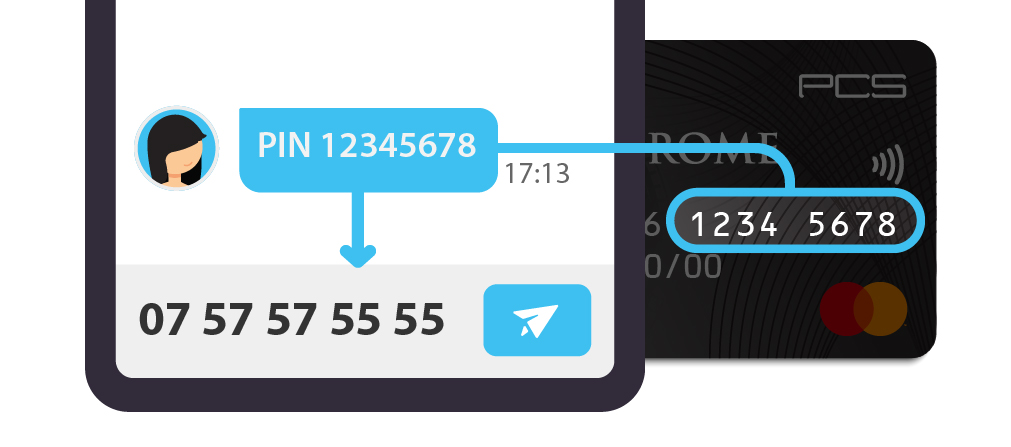
To activate your card and get your PIN code, send the following text message:
the letters PIN followed by a space, then the last 8 digits of your PCS card to 06 01 78 78 78
Example: PIN 12345678
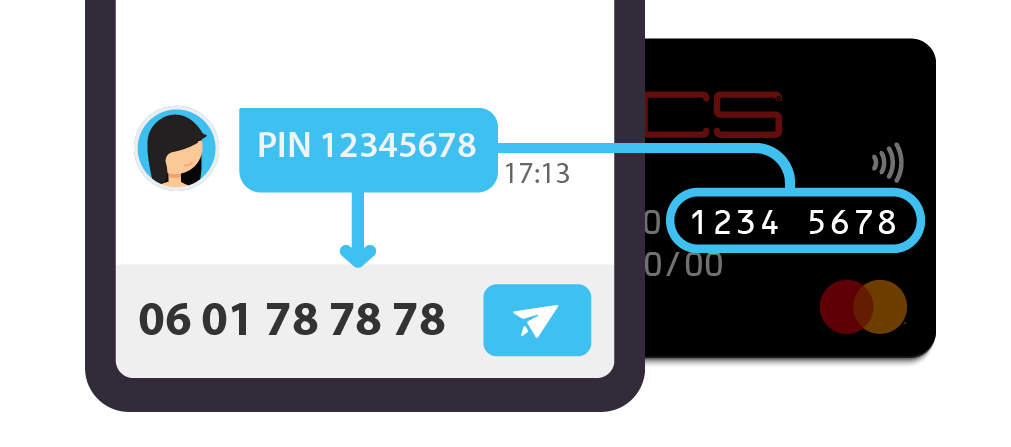
To activate your card and get your PIN code, send the following text message:
the letters PIN followed by a space, then the last 8 digits of your PCS card to 07 50 50 55 05
Example: PIN 12345678
It is often quick and easy to understand why a payment was declined.
Here are a few things to check:
– Have you completed your profile to 100%?
This means you have successfully completed all the verification steps (ID document approved, postal address verified or liveness check).
You need to complete these steps in full to make the most of your PCS card. You will then be able to use your card across the entire Mastercard network and benefit from higher limits.
If you have not completed your profile to 100% and need help, click here.
– Is your balance sufficient? Your card is prepaid, which means it cannot go overdrawn. Simply top it up to be able to use it.
– Are you sure your card is not locked? For security reasons, you can lock your card by text message or from your mobile app. If your card is locked, you cannot use it. Unlock it and you're good to go!
– Did you enter the correct PIN code, or the correct details when paying online?
Once your card has been activated by text message, you need to create your “My account” area.
To do so, have the phone you used to activate your PCS card to hand, then go to mypcs.com or your MyPCS mobile app.
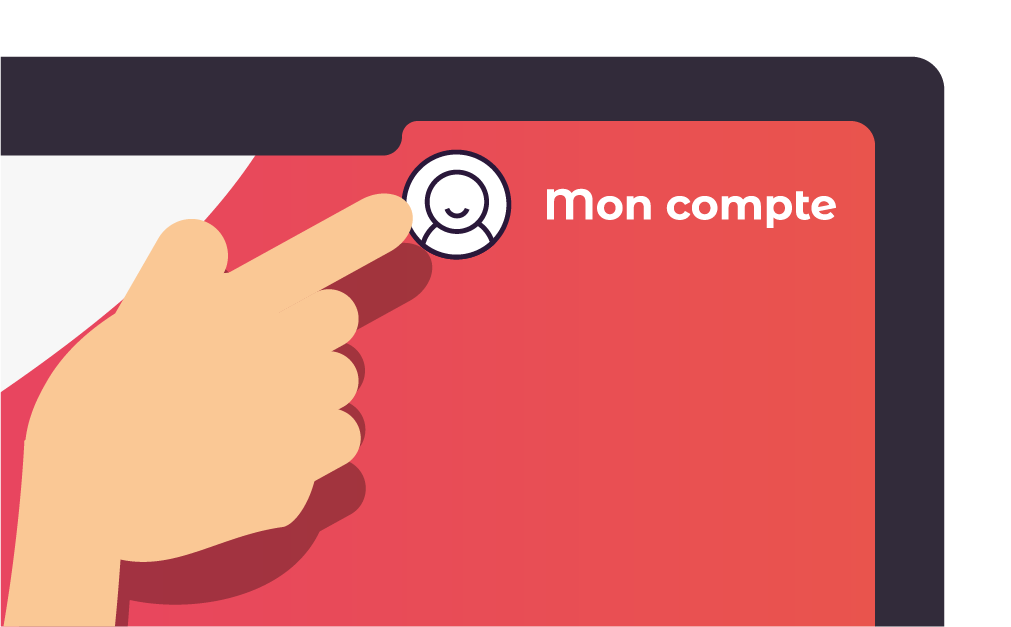
From the mypcs.com website: click “My account” at the top right, then “First login”.
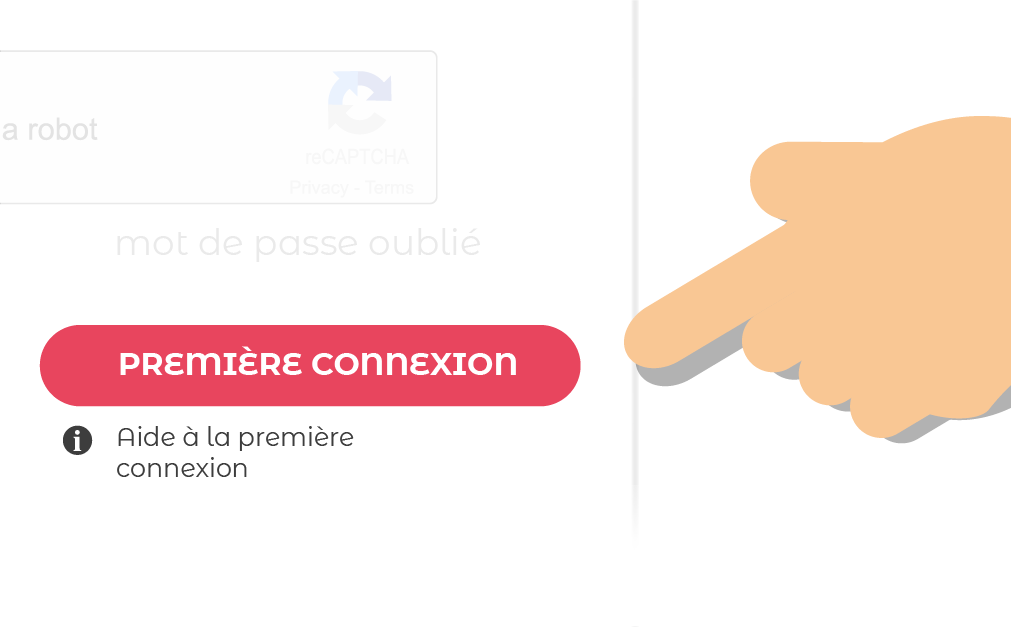
From your MyPCS app: open the app, tap “Log in”, then “First login”.
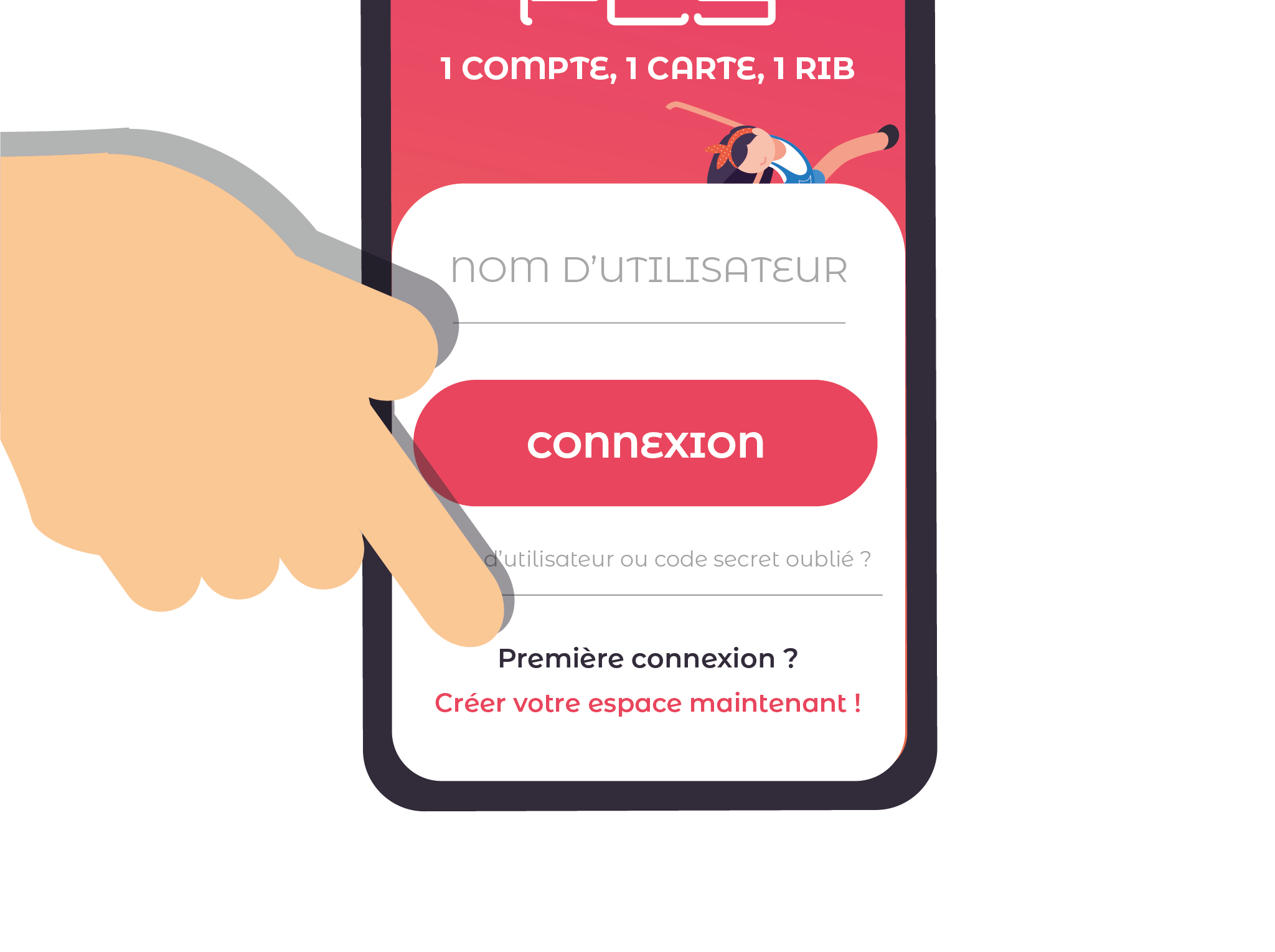
Then simply follow the on-screen instructions to register.
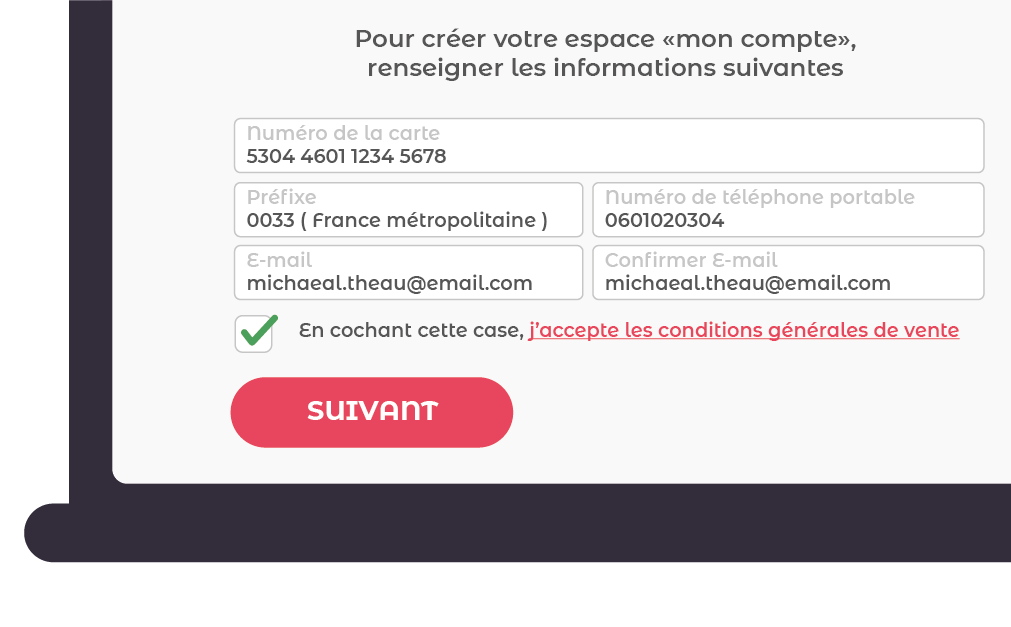
If you ordered a personalised card with your name on it (embossed card) or a Virtual card, your “My account” area has already been created. Simply log in to your area using the username and password you chose when you made your purchase.
Part of the price of our cards goes to the company that manufactures them.
To make our cards easily accessible, we chose to rely on the network of tobacconists to distribute them. With every sale and top-up, the tobacconist is therefore also entitled to a share of the price of the card or a percentage of the top-up fees.
PCS is not a bank: we therefore use banks' cash machines to let you withdraw money in France and abroad. The withdrawal fees we charge you are paid back to them in full.
The monthly fees, between €1.50 and €2, partly go towards paying our PCS teams, who work every day to provide you with a quality service and answer your questions.
To sum up, our fees pay the factory that makes our cards, the tobacconist network, the banks and us, PCS!
On the other hand, we have decided to charge no fees on salary and social benefit transfers, or on online and in-store payments!
Which card did you order?
Our card delivery times are:
– for an embossed card (personalised card with your name on it): 14 working days;
– for an express card: 48 working hours (for example, a card ordered on a Friday is shipped the following Monday).
If you have not received your card within the times shown above, contact us on 0 811 880 200 or via the contact form.
We will ask you to provide:
– your last name and first name;
– the phone number given when ordering;
– the reference, exact date and delivery address of your order.
As a reminder, the Virtual card is a digital card that can only be used for online payments. It is therefore normal that you do not receive a physical card.
To use your card online, your Virtual card details are available in your “My account” area.
Are you a business and would like to find out more about PCS Pro and our Corporate offer?
Are you a business and would like to find out more about PCS Pro and our Incentive offer?
We can replace your lost card for €8 to €15, depending on the card you had. To do so, send us a request by email to contact@creacard.net or call us on 0 811 880 200.
You will receive your new card, personalised with your name, within 10 working days.
Don't forget to let us know if you have changed address since your previous order!
For added security, we recommend locking your card from your MyPCS mobile app.
If you can't withdraw money, here are a few things to check:
– Have you completed your profile to 100%?
This means you have successfully completed all the verification steps (ID document approved, postal address verified or liveness check).
You need to complete these steps in full to make the most of your PCS card. You will then be able to use your card across the entire Mastercard network and benefit from higher limits.
If you have not completed your profile to 100% and need help, click here.
– Is your balance sufficient? Your card is prepaid, which means it cannot go overdrawn. Simply top it up to be able to use it.
– Are you sure your card is not locked? For security reasons, you can lock your card by text message or from your mobile app. If your card is locked, you cannot use it. Unlock it and you're good to go!
– Did you enter the correct PIN code?
Your password or username may be incorrect.
To get new ones, click “Forgot username or password” on our mypcs.com website or in your MyPCS mobile app.
If your login details are correct, or if the “Forgot username or password” process did not work, contact our customer service on 0 811 880 200 to get a diagnosis of your card.
From the mypcs.com website: click “My account” at the top right, then click the gear icon at the top right and “My account”. You can then change your email address.
It is important to provide a valid email address so that you receive all the information relating to your card.
PCS fees apply when you carry out transactions. Here are a few examples:
– Incoming transfer fee: 2% of the amount loaded will be deducted.
– Withdrawal fee: a fee of €1.50 is charged for each withdrawal.
– Declined transaction fee: please note that €0.20 is charged for each declined transaction. Remember to check your card balance before making a payment.
To see all your card's fees and limits, check our prices.
Sometimes your card may not work for very simple reasons that are easy to fix yourself.
Here are a few things to check:
– Have you completed your profile to 100%? Once you have provided your ID card, you will be able to use your card across the entire Mastercard network and benefit from higher limits. If you have not completed your profile to 100%, go to your “My account” area.
– Is your balance sufficient? Your card is prepaid, which means it cannot go overdrawn. Simply top it up to be able to use it again.
– Are you sure your card is not locked? For security reasons, you can lock your card by text message or from your mobile app. If your card is locked, you cannot use it. Unlock it and you're good to go!
From mypcs.com: go to your “My account” area, then to the “Send or receive a transfer” tab.
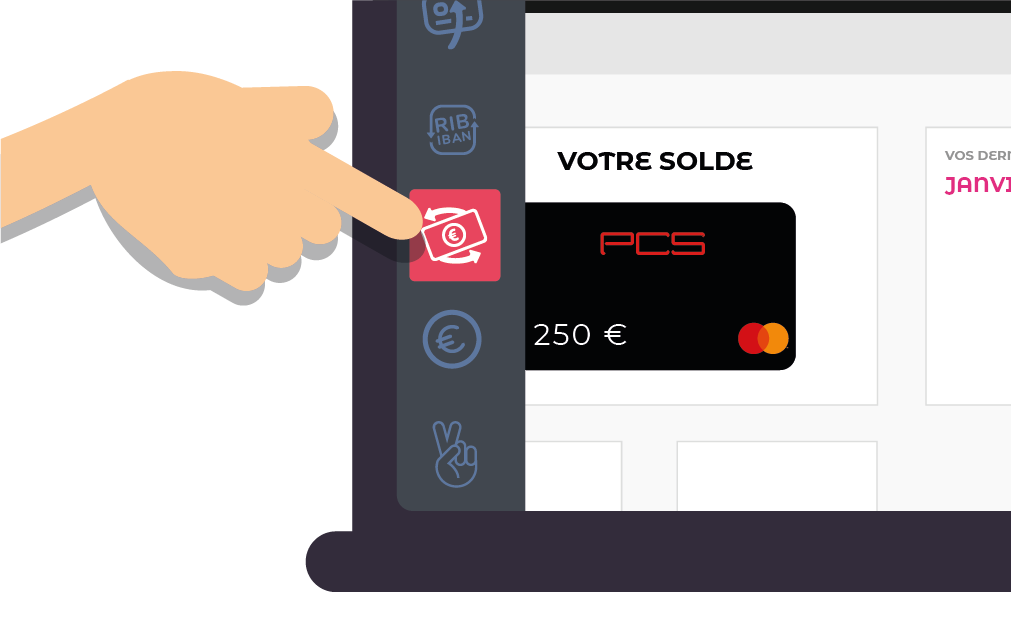
Then click “Make a transfer to a third-party account”.
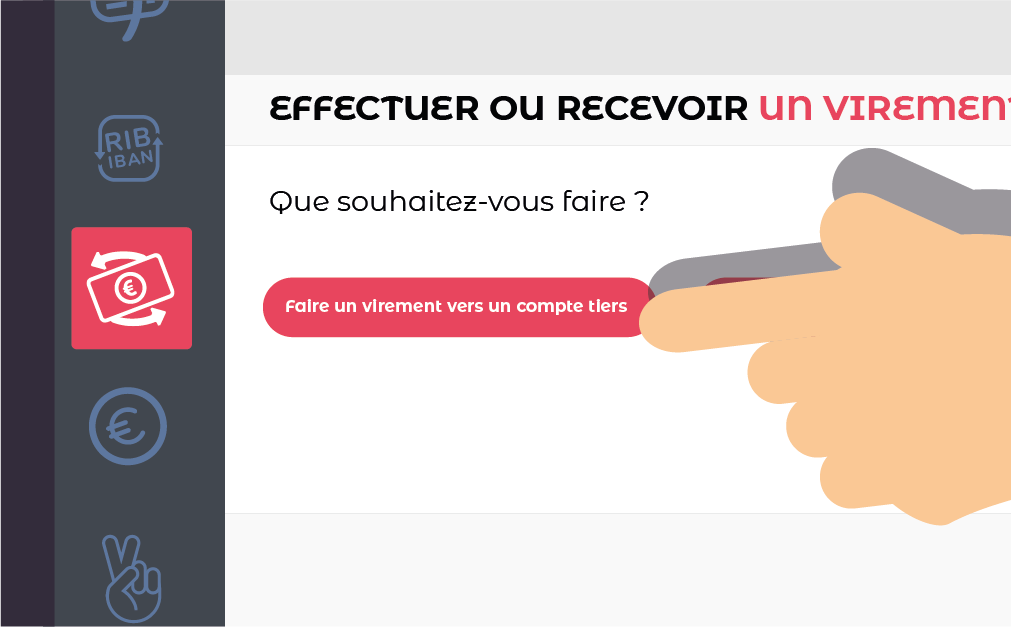
Enter the amount to transfer and the reference, then choose the person you want to send the transfer to.
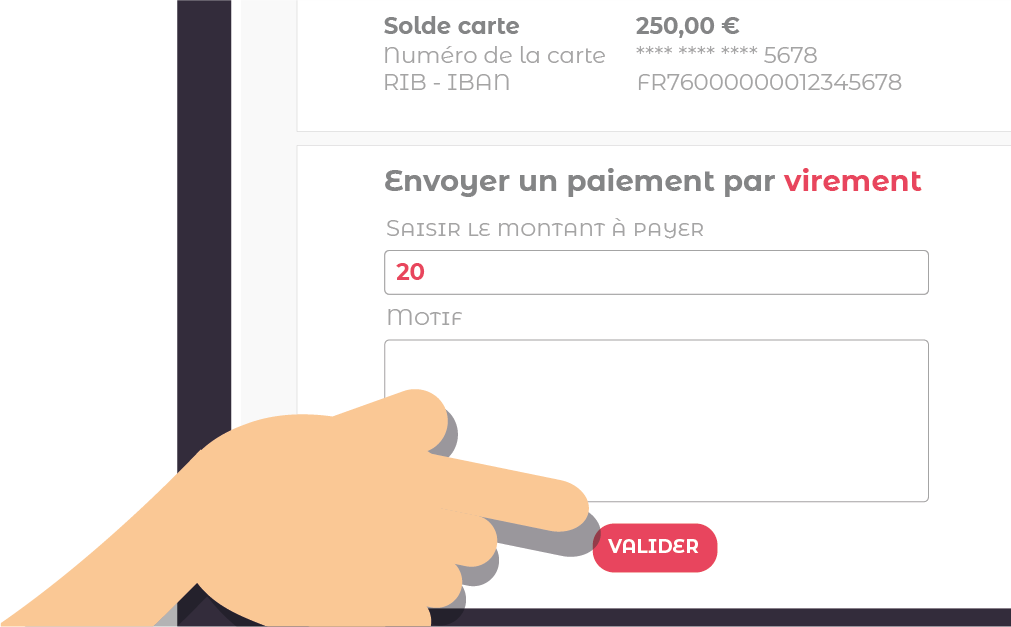
Confirm the transfer summary.
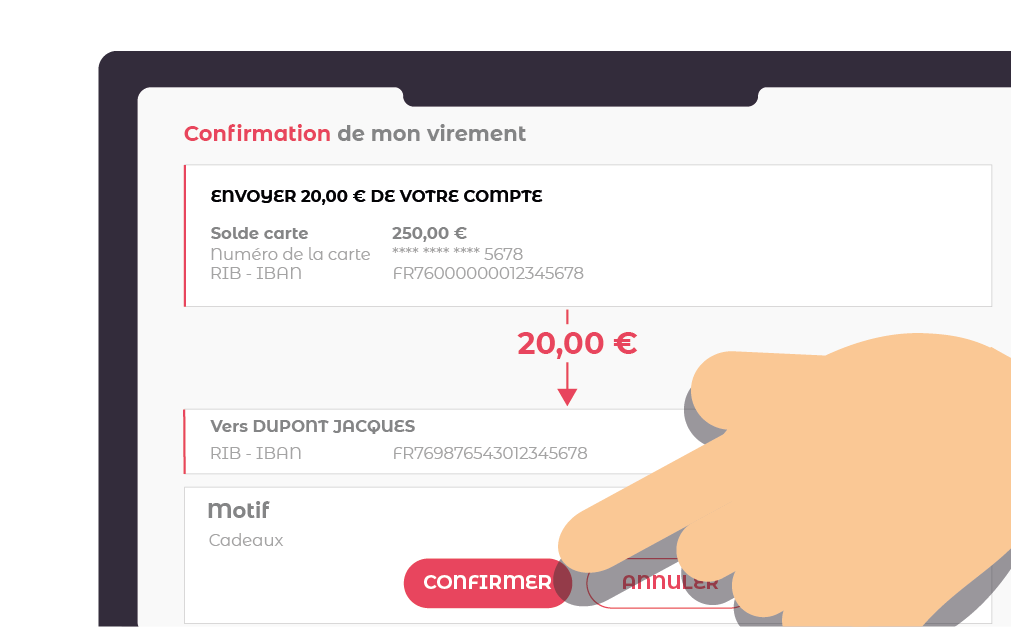
To confirm that you are the one initiating this transfer, we will ask you to enter your login code.
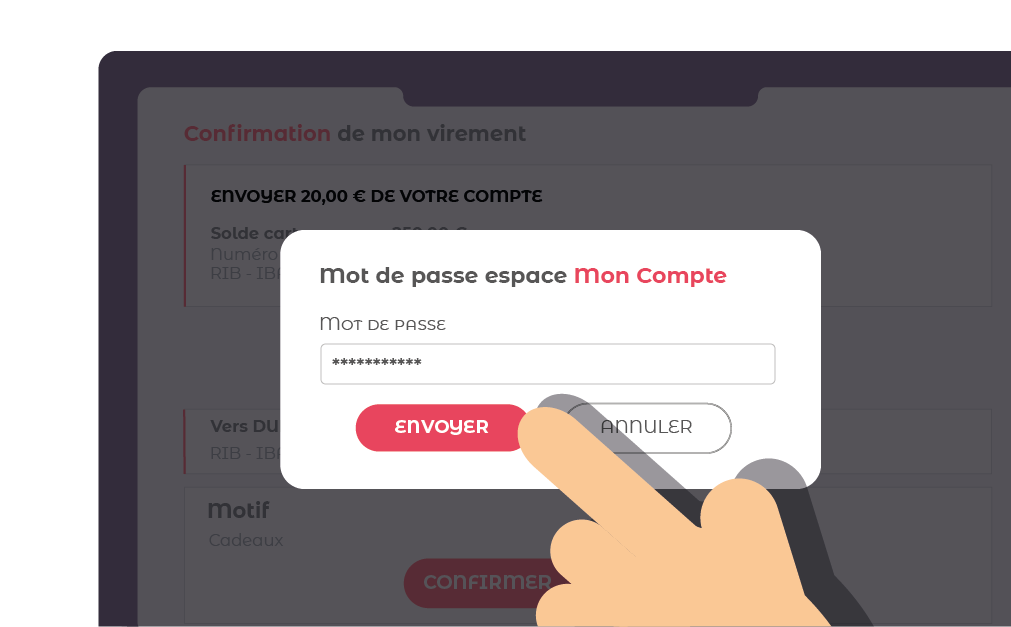
From the MyPCS mobile app: go to “Send”, then “Transfer” and follow the instructions, which are the same as above.
My username:
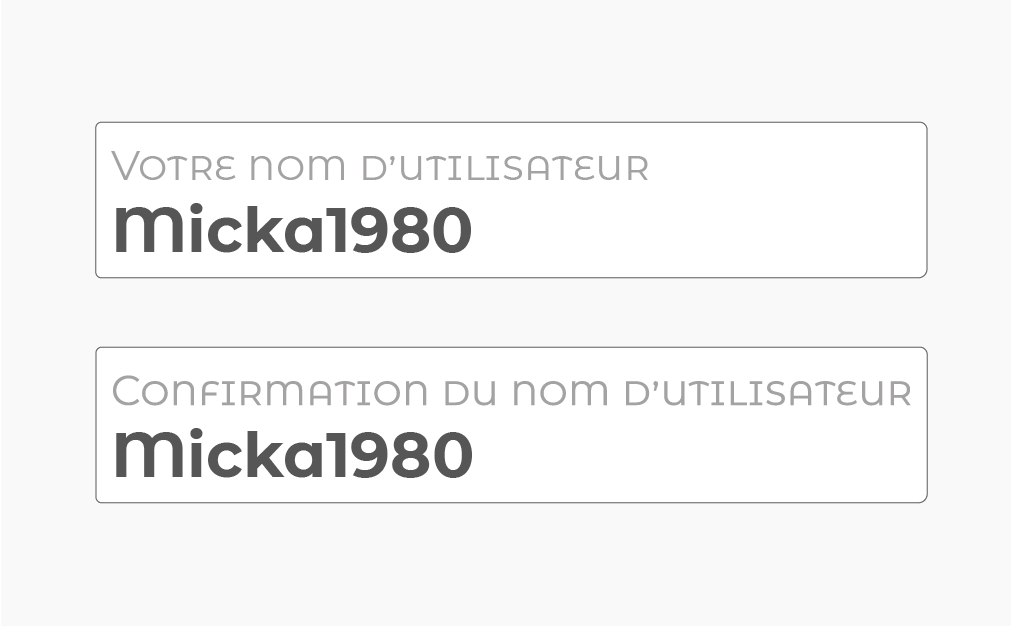
You need to choose a username that is not already taken by another PCS customer and is not too easy to guess.
If the name has already been taken, you will see the following error message:
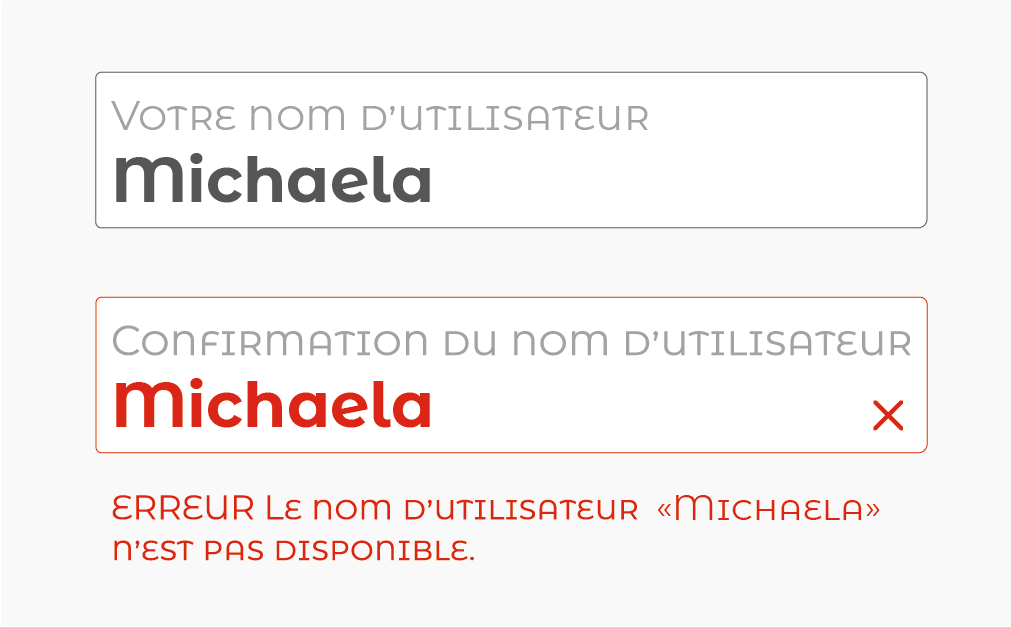
We recommend choosing a username that combines letters and numbers. It is important to choose a username that you will remember for your next logins to your “My account” area.
My password:
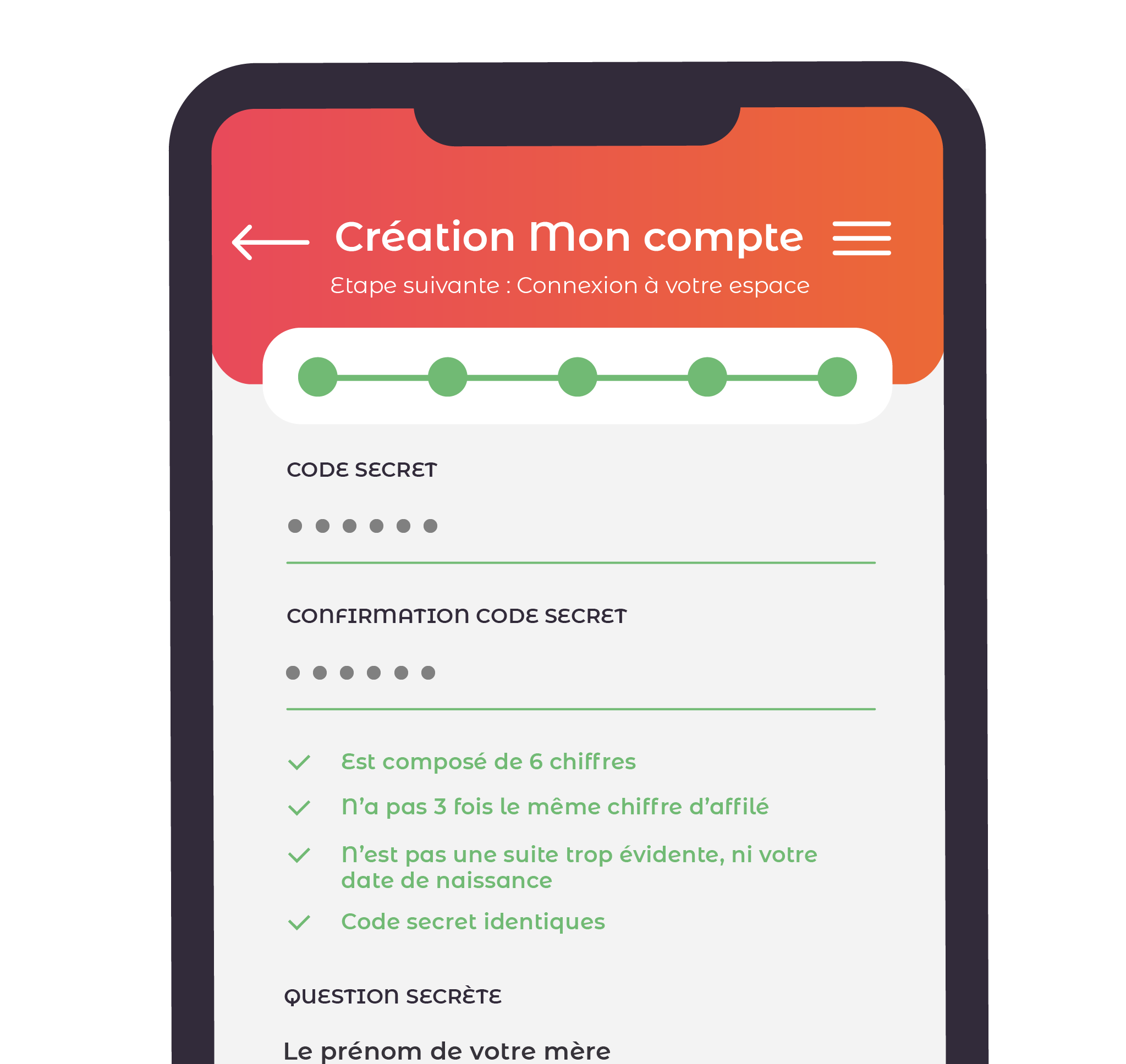
To keep your PCS “My account” area secure, your password must meet several requirements. Your password must:
- be made up of 6 digits;
- not contain the same digit 3 times in a row;
- not be an obvious sequence or your date of birth.
To help you, as you type your password, each requirement turns green once it is met. Any requirement that is not met stays red.
We then ask you to type the password again to make sure you remember it and that there are no typos. Both passwords must be identical.
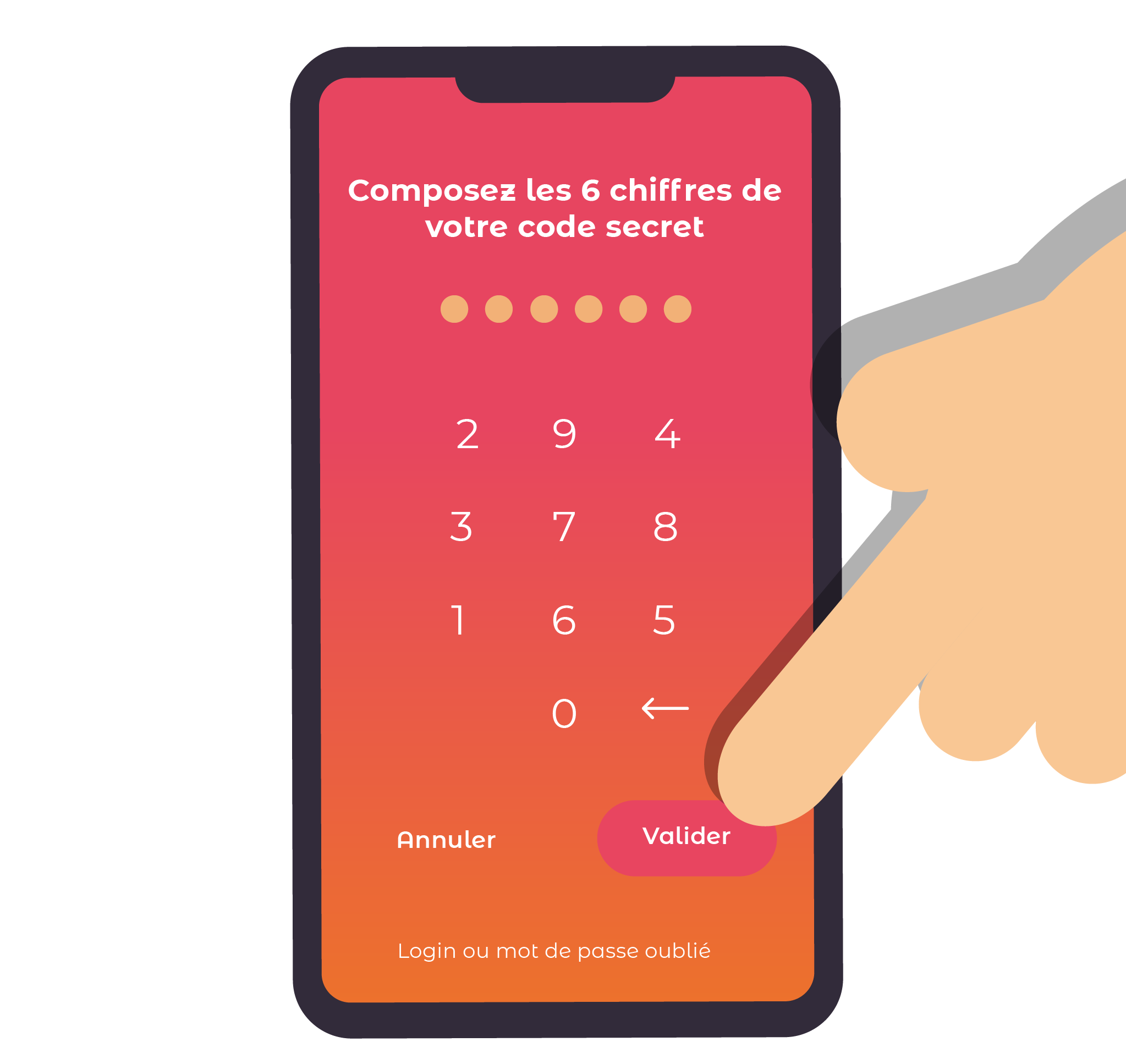
After that, to log in to your “My account” area, simply enter your password on the keypad as shown below.
To change your postal address, email us at contact@creacard.net with proof of address in your name dated within the last 3 months (handwritten rent receipts and certificates of accommodation are not accepted).
Which card do you have?
To retrieve your PIN code, simply send the following text message: the letters PIN followed by a space, then the last 8 digits of your PCS card to 07 57 57 55 55
Example: PIN 12345678
Please note: your new PIN code will be sent to the phone number you used to activate your card. If you have changed your phone number, email us at contact@creacard.net with a copy of your ID document and a matching bill showing your new mobile number.
Keep your PIN code safe. A fee of 20 cents will be charged for each new request.
To retrieve your PIN code, simply send the following text message: the letters PIN followed by a space, then the last 8 digits of your PCS card to 06 01 78 78 78
Example: PIN 12345678
Please note: your new PIN code will be sent to the phone number you used to activate your card. If you have changed your phone number, email us at contact@creacard.net with a copy of your ID document and a matching bill showing your new mobile number.
Keep your PIN code safe. A fee of 20 cents will be charged for each new request.
To retrieve your PIN code, simply send the following text message: the letters PIN followed by a space, then the last 8 digits of your PCS card to 07 50 50 55 05
Example: PIN 12345678
Please note: your new PIN code will be sent to the phone number you used to activate your card. If you have changed your phone number, email us at contact@creacard.net with a copy of your ID document and a matching bill showing your new mobile number.
Keep your PIN code safe. A fee of 20 cents will be charged for each new request.
Transfers are processed on the day they arrive. If a transfer arrives after 5 pm, it will be processed the next day.
Our teams credit your transfers as quickly as possible.
The time between a transfer being sent and it arriving on your card can vary from 2 to 4 working days depending on the bank.
For security reasons, a transfer may sometimes be checked. If so, you will receive an email that you will need to reply to so that processing can continue.
From mypcs.com or your mobile app, click “My account”, then “Forgot username or password”.
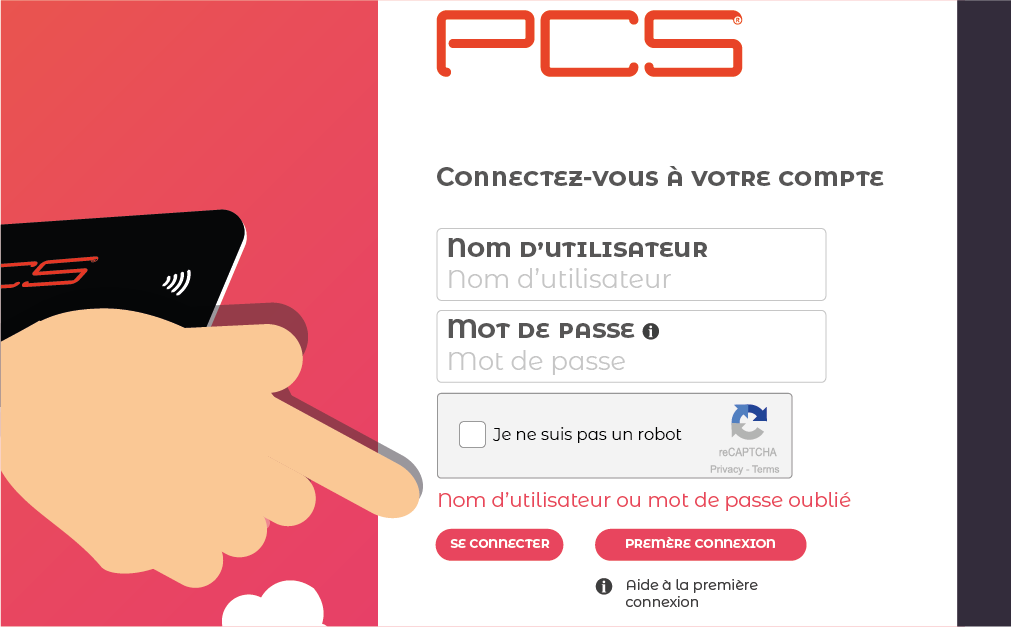
Then enter EITHER your PCS card number AND your mobile number,
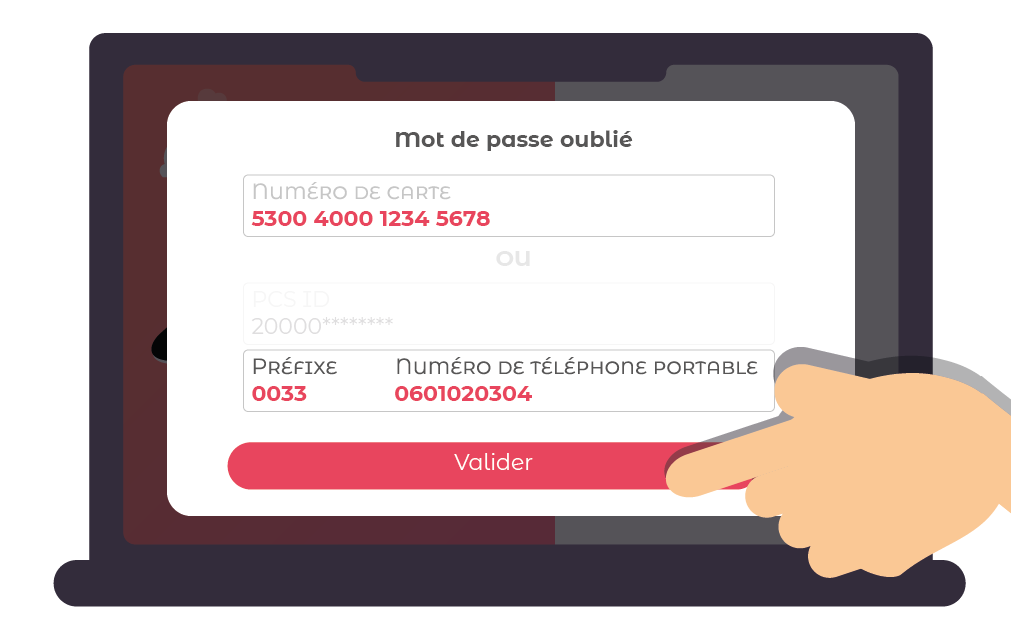
OR your PCSID number AND your mobile number, then confirm.
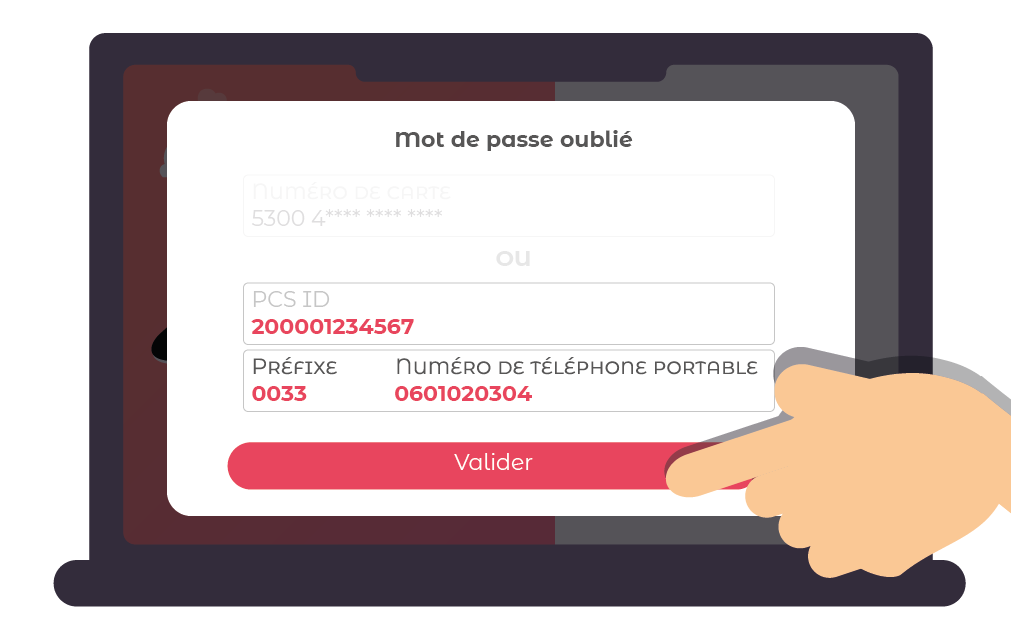
To reset them, you will need:
– your card number or the barcode number (PCSID) on the back of your card;
– the mobile number linked to your card;
– the answer to your secret question.
If you have changed your phone number, email us at contact@creacard.net with a copy of your ID document and a matching bill showing your new mobile number. We will update your details.
If you have changed your phone number, email us at contact@creacard.net with a copy of your ID document and a matching bill showing your new mobile number.
We offer to renew your card free of charge. At the start of the month in which your card expires, you will receive an email from us offering to renew your card. Follow the instructions it contains.
Once your request has been made, you will receive your new card, personalised with your name, within 10 working days.
Example: your card's expiry date is 09/22. At the start of September, you will receive an email offering renewal.
To get bank details (RIB), your profile must be 100% verified, meaning you have successfully completed all the verification steps (ID document approved, postal address verified or liveness check).
To do so, go to your “My account” area on mypcs.com or to your MyPCS mobile app.
Once verification is complete, you can download your bank details:
– On our mypcs.com website: from your “My account” area, in the “Get my IBAN / RIB” tab.
– On our MyPCS mobile app: in the “Top up” tab, then in “Transfer”, tap “Get my RIB”.
By completing your profile to 100%, you can make full use of your PCS card. Otherwise, your card can only be used within a limited network and will have lower limits. You will also not be able to get bank details (RIB / IBAN).
To benefit from higher limits and get personalised bank details (RIB / IBAN), you will need to verify your profile to 100% by providing an ID document.
Have one of the ID documents listed below to hand:
– passport;
– ID card;
– driving licence;
– residence permit.
Then go to mypcs.com or your MyPCS mobile app to start the verification.
– From your mobile app: tap “Cards”, then “Verify my profile” and follow the instructions.
– From the mypcs.com website: go to your “My account” area, click “Verify my identity”, then follow the instructions. Once your ID document has been approved, a secret code will be sent to your home address. Once you have received it, log in to your “My account” area again and enter the secret code in the field provided.
When you take a photo of your ID document, make sure you are in a well-lit room and that the photo is sharp.
Accepted ID documents are:
– French ID cards;
– international passports;
– French driving licences;
– residence permits.
ID documents not accepted are:
– expired ID documents;
– receipts for residence permit applications;
– asylum seeker certificates.
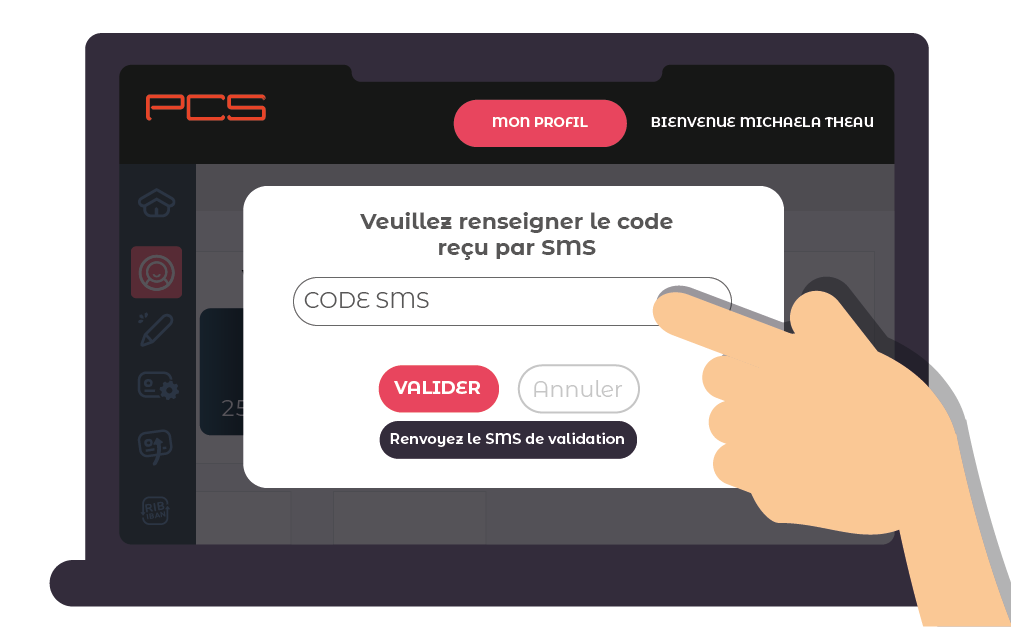
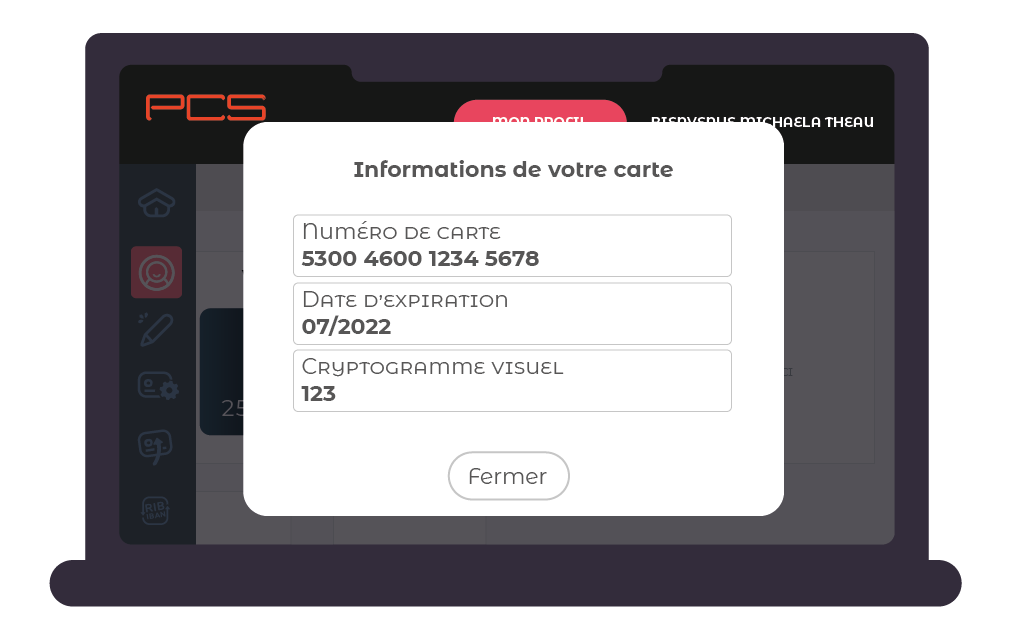
Get all your card details from your “My account” area.
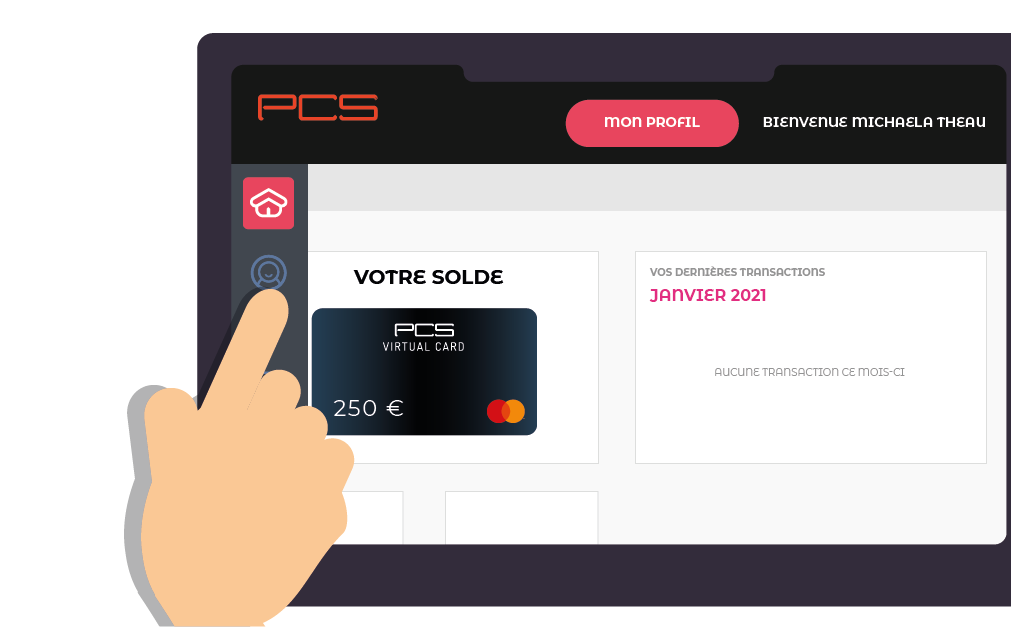
On mypcs.com: go to your “My account” area, then to the “My information” menu, then to “Card details”.
On the MyPCS mobile app: go to the card menu, then tick “Card details”.
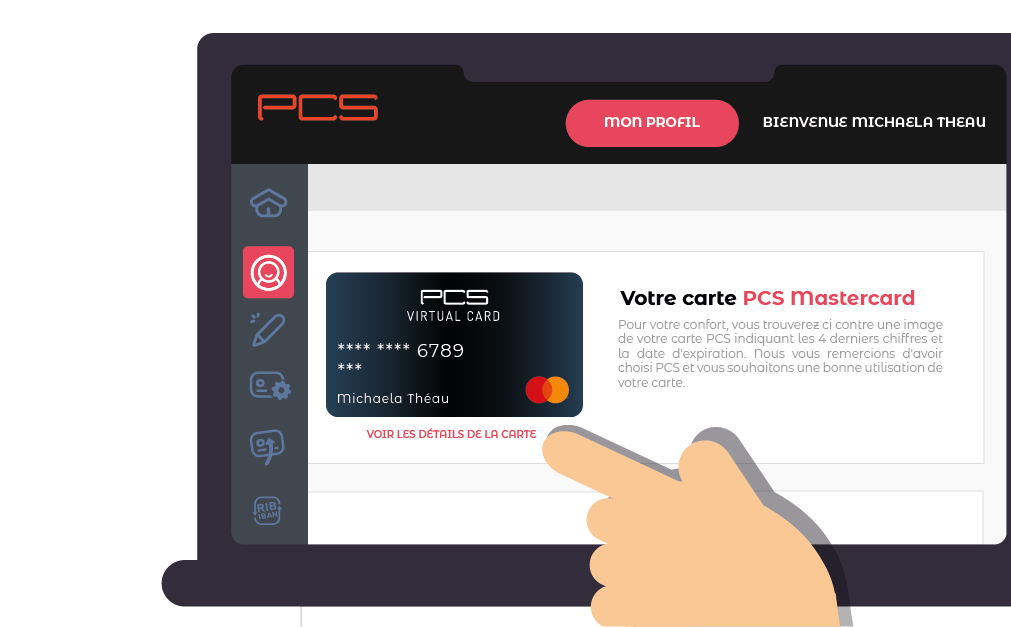
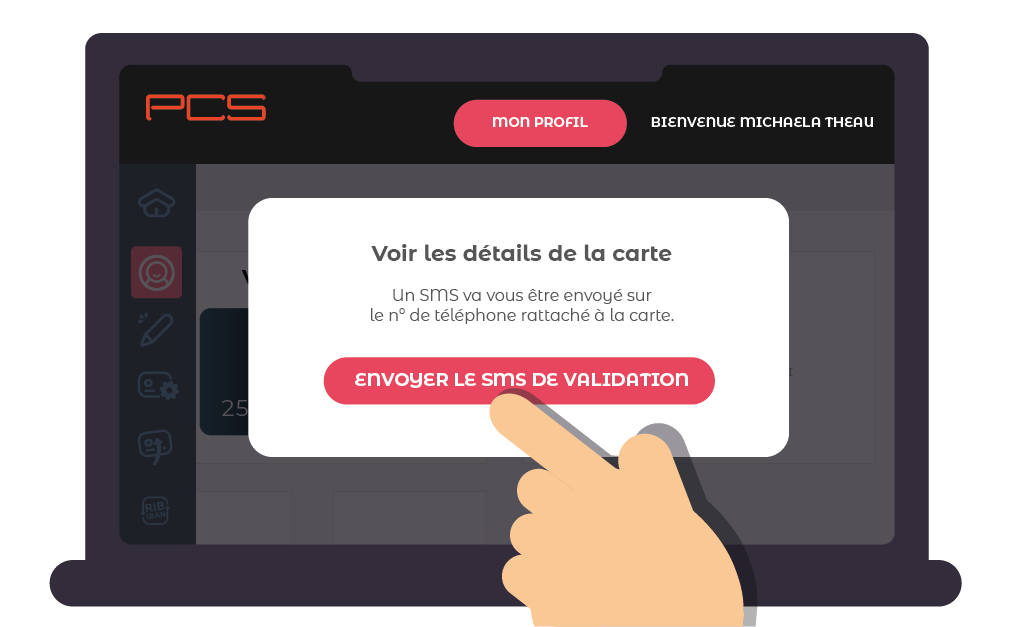
Find the full card number, the expiry date and the security code (CVV).
This information can be useful if you lose your card and need to lock it, or if you have a Virtual card and want to make online payments.
If you notice an anomaly on a transaction, contact Customer Service on 0 811 880 200.
Please note that:
– Only fraudulent payments over €50 can be disputed for a refund.
– Transactions made with the card and PIN code, such as withdrawals and card terminal payments, cannot be disputed.
To cancel your PCS card, simply send us a copy of your ID document by email to contact@mypcs.com.
If there are funds available on your card, they will be refunded to you by bank transfer within 7 days of receiving your cancellation request (excluding a €10 refund fee). Remember to attach your bank details (RIB) to your request.
A refund by cheque is also possible. In that case, please confirm your postal address.
It is not possible to block a card transaction when the card details (number, security code and expiry date) are correct.
We recommend contacting the website(s) debiting your card to ask them for a refund or to cancel any subscriptions you may have with them.
The only option on our side is to replace your card, so that these merchants no longer have its details.
Contact us
Didn't find your answer? Fill in the form below and our customer service team will get back to you as soon as possible.
Fields marked with * are required